General / TAO Cloud / TAO Cloud Operation
TAO Cloud Operation
Homepage
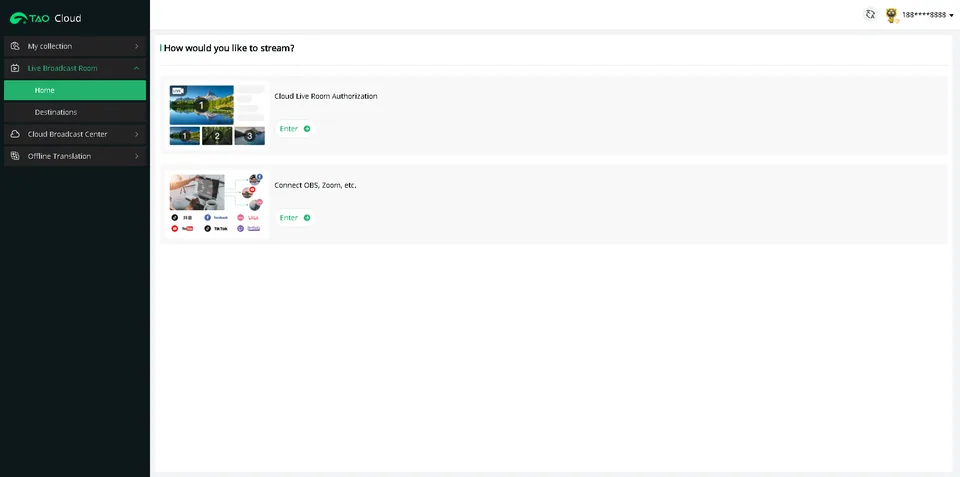
The TAO Cloud platform homepage is shown below. Users can perform the following operations:
- Create a live broadcast room
- Store videos
- Bind and manage devices
- Offline translation
- Change system language
- Other settings
Device
Binding Devices
The following device binding procedure uses mini-edge SDI as an example.
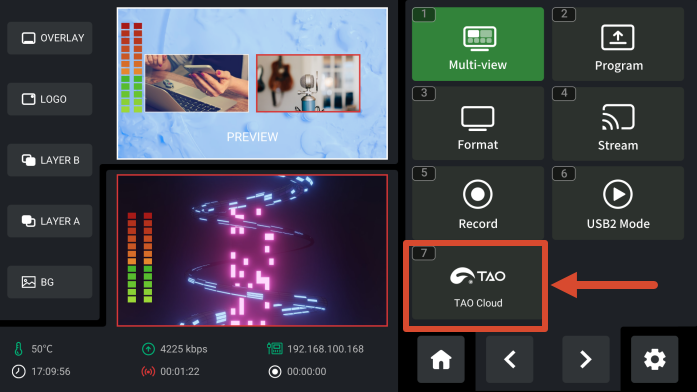
- If the device has not yet been linked to TAO Cloud, a device verification code will be displayed. Before obtaining the code, ensure that the device is connected to the network.
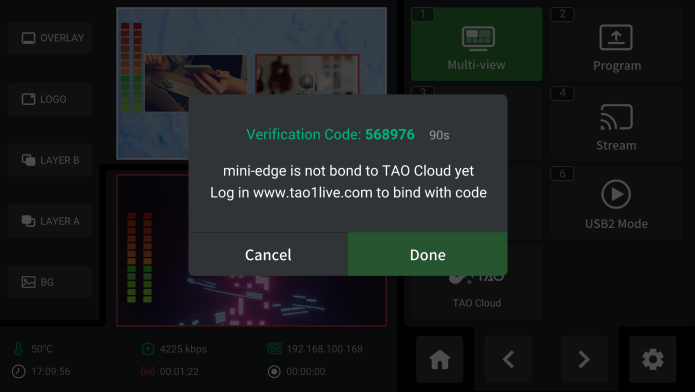
- Open TAO. Enter your mobile phone number, and click Send Verification Code. Enter the received code and click Log In.
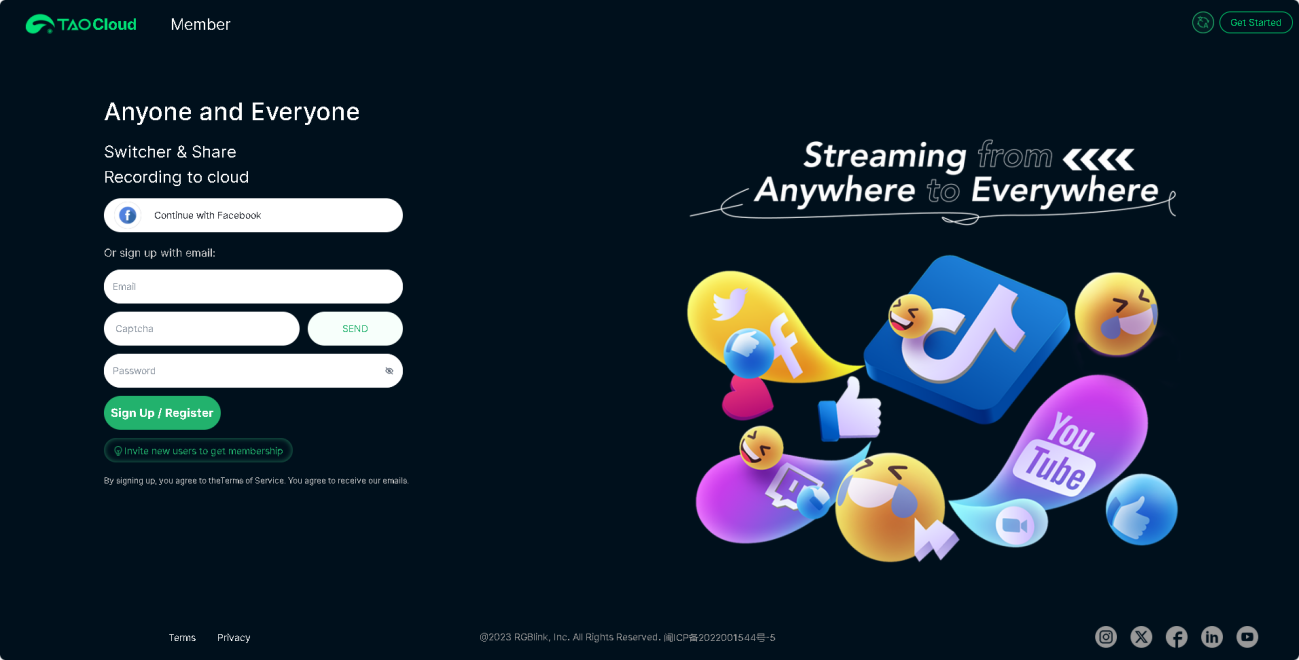
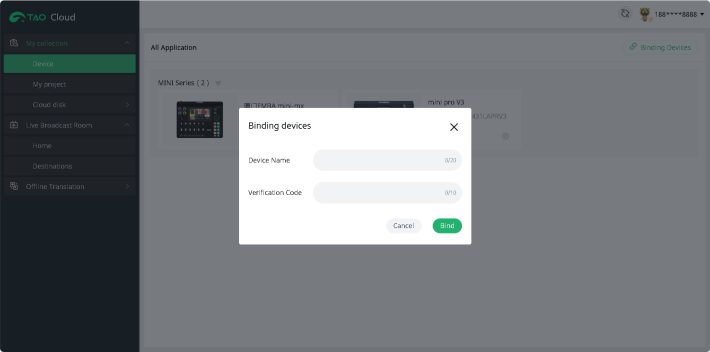
- After logging in, navigate to: My Collection > Device > All Application > Binding Devices
Enter:
- Device Name
- Verification Code
Then tap Bind to complete device binding.
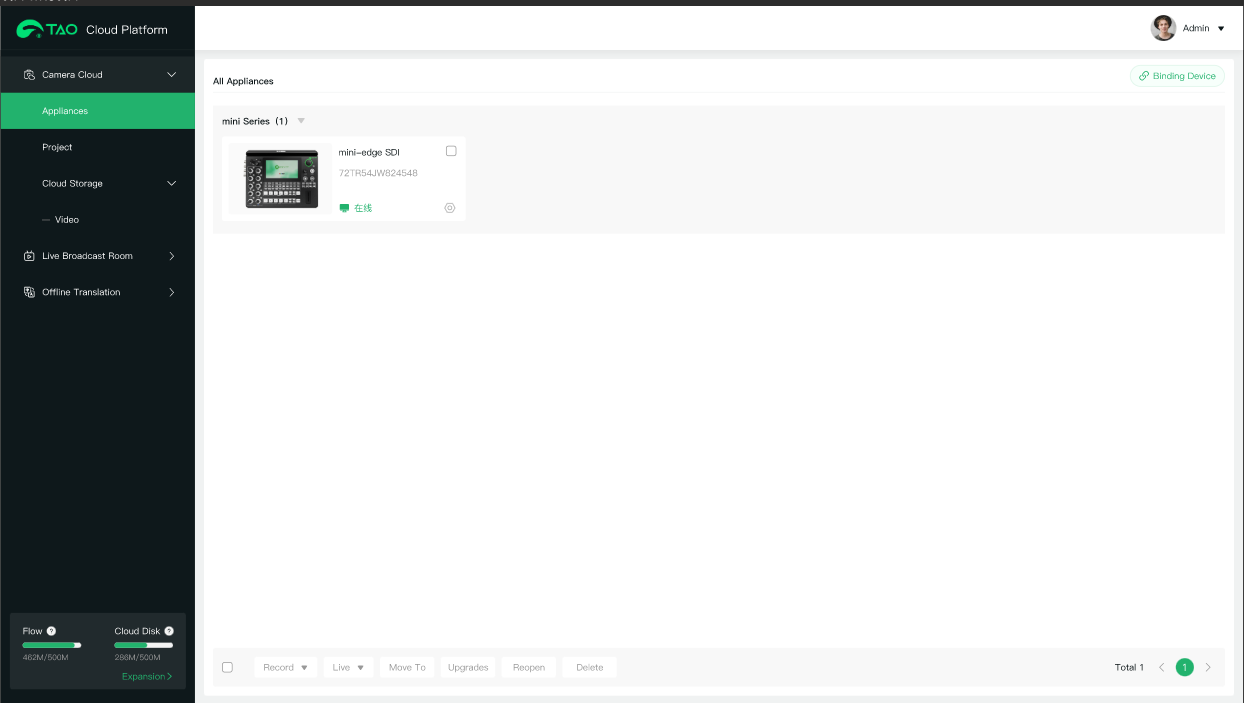
- After binding, the device status can be viewed in All Application page.
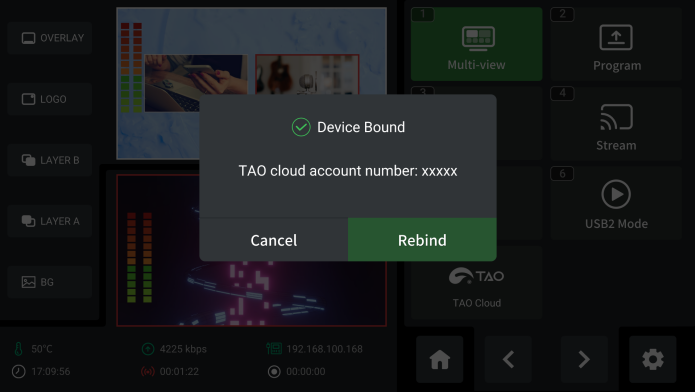
- To unbind the device:
From the TAO Cloud page on the device,
- Select Rebind.
- Press ENTER to confirm.
The current device association will be removed.
📢  Notes

If the device remains connected to the network, performing a factory reset will automatically remove its association with the TAO Cloud platform.
Device Management
After binding a device, users can remotely view device status and control device functions through TAO Cloud.
Go to My Collection > Device to view bound devices and their status.
Click a device icon to enter the device management page for remote control.
📢  Notes
Available remote control functions vary depending on the device model and firmware version.
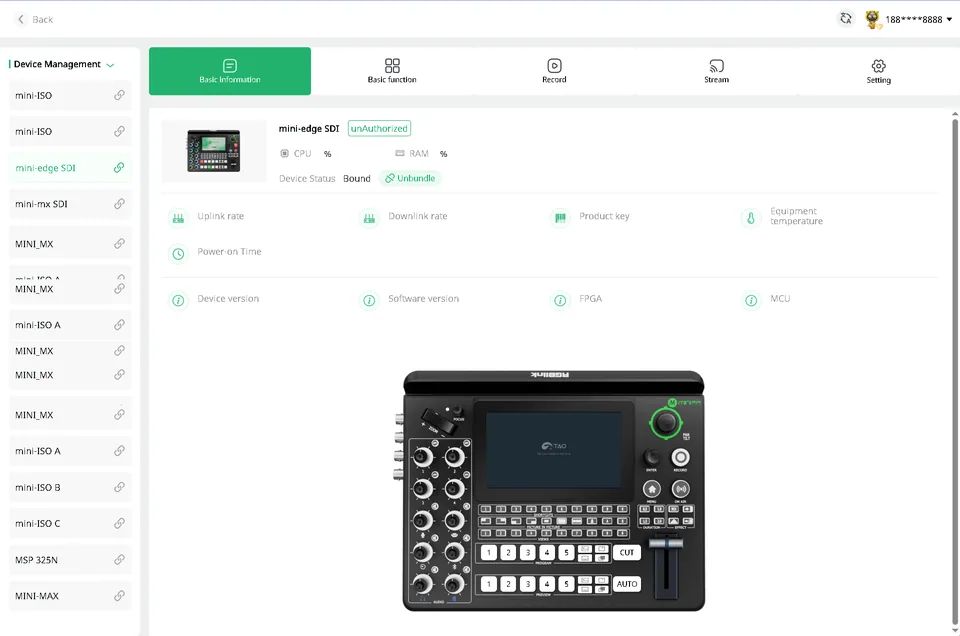
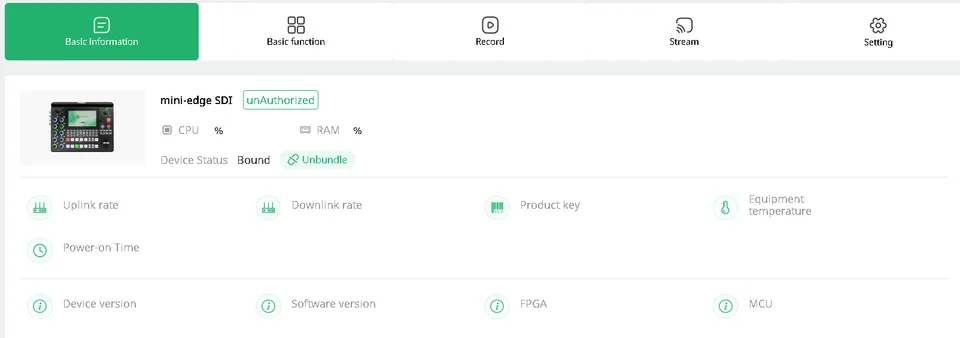
1. Basic Information
Displays device status and system information, including device status, CPU usage, RAM usage, and version number.
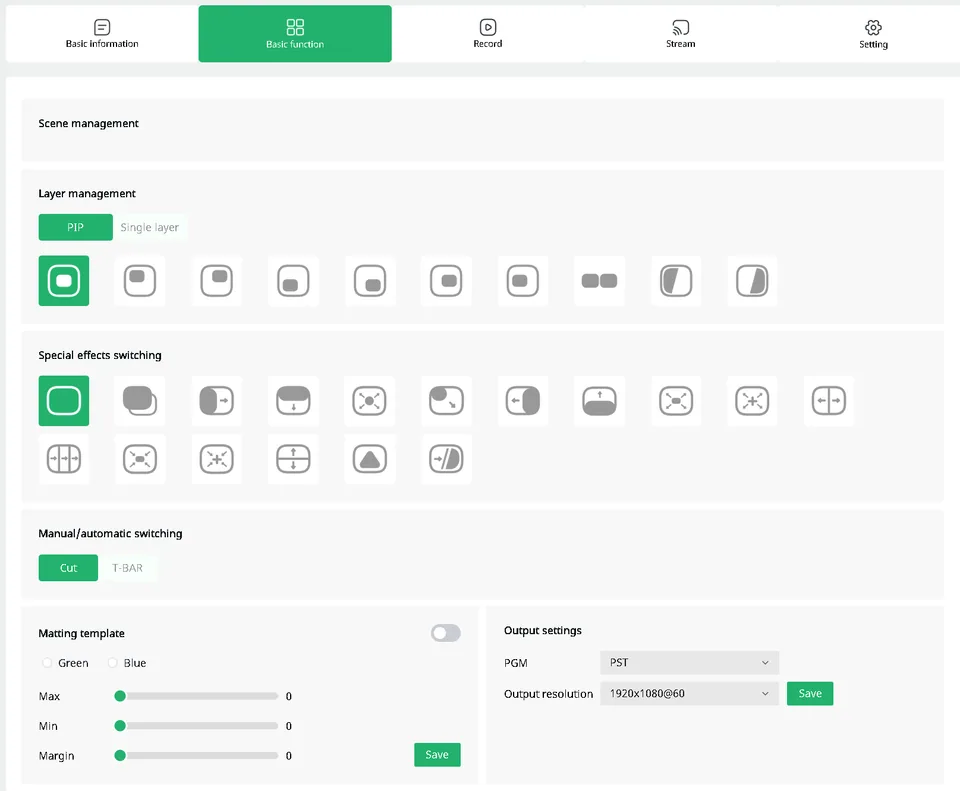
2. Basic Function
Provides remote control of commonly used functions, including layer management, effect switching, chroma key settings and so on.
Available functions vary depending on the device configuration. The following example shows the Basic Functions page of mini-edge SDI.
3. Record
Controls device recording and displays recording storage status.
After recording starts, the page displays used space, available space, and remaining recording time. Set the Code rate at the bottom of the page.
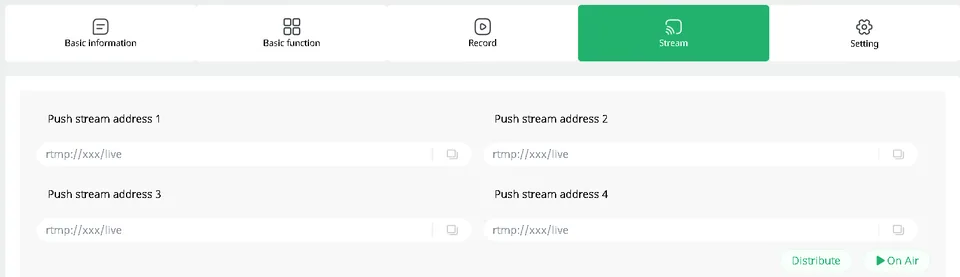
4. Stream
Manages live streaming configurations.
Enter the streaming address and click Distribute to sync the address to the device. Click On Air to start streaming.
📢  Notes
A single device supports up to four streaming addresses simultaneously.
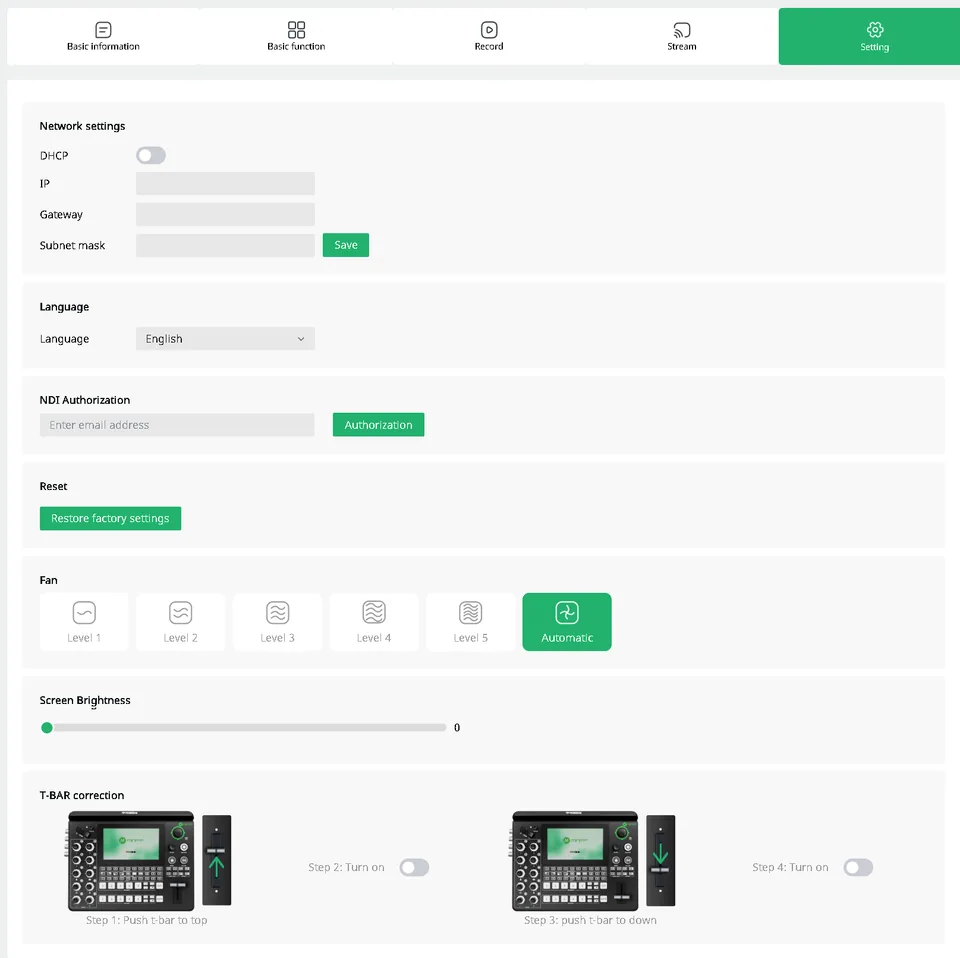
5. Setting
Displays device settings, including network settings, language selection, and factory reset. Available settings vary depending on the device configuration. The following example shows the Settings page of mini-edge SDI.
Cloud Disk
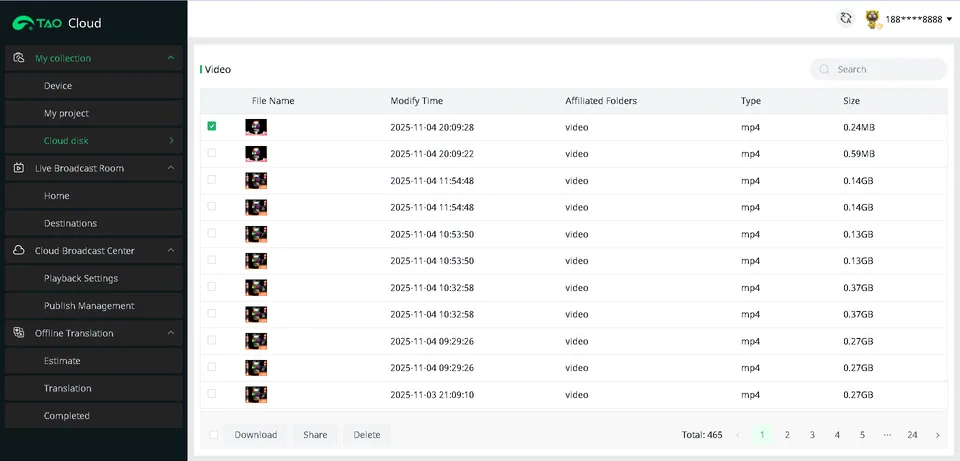
Click Cloud Disk to enter the following page.
Recorded live streams are stored in cloud storage.
Find recorded videos in the video list to watch online, download, share, or delete stored videos.
Offline Translation
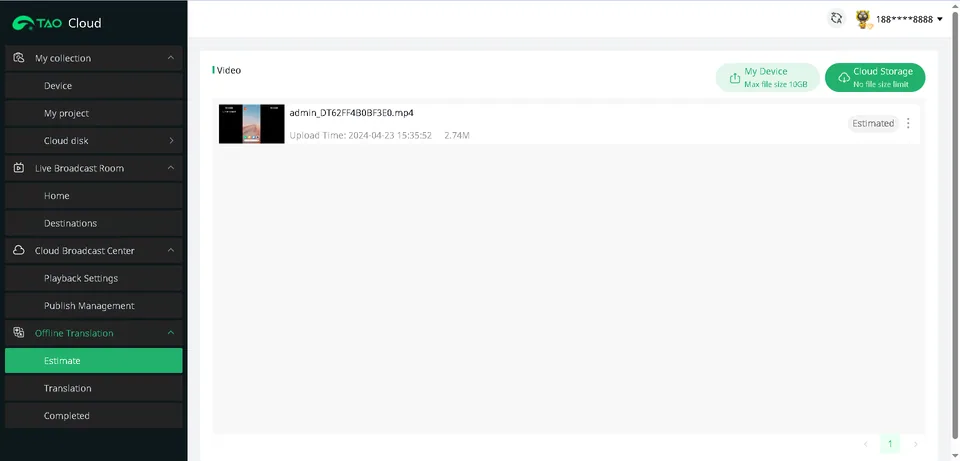
TAO Cloud provides translation services. Click Offline Translation > Estimate to enter the following page.
-
On the Estimate page, click My Device or Cloud Storage to import videos from local storage or cloud storage for offline translation.
-
Select the video to translate, then choose the required translation services.
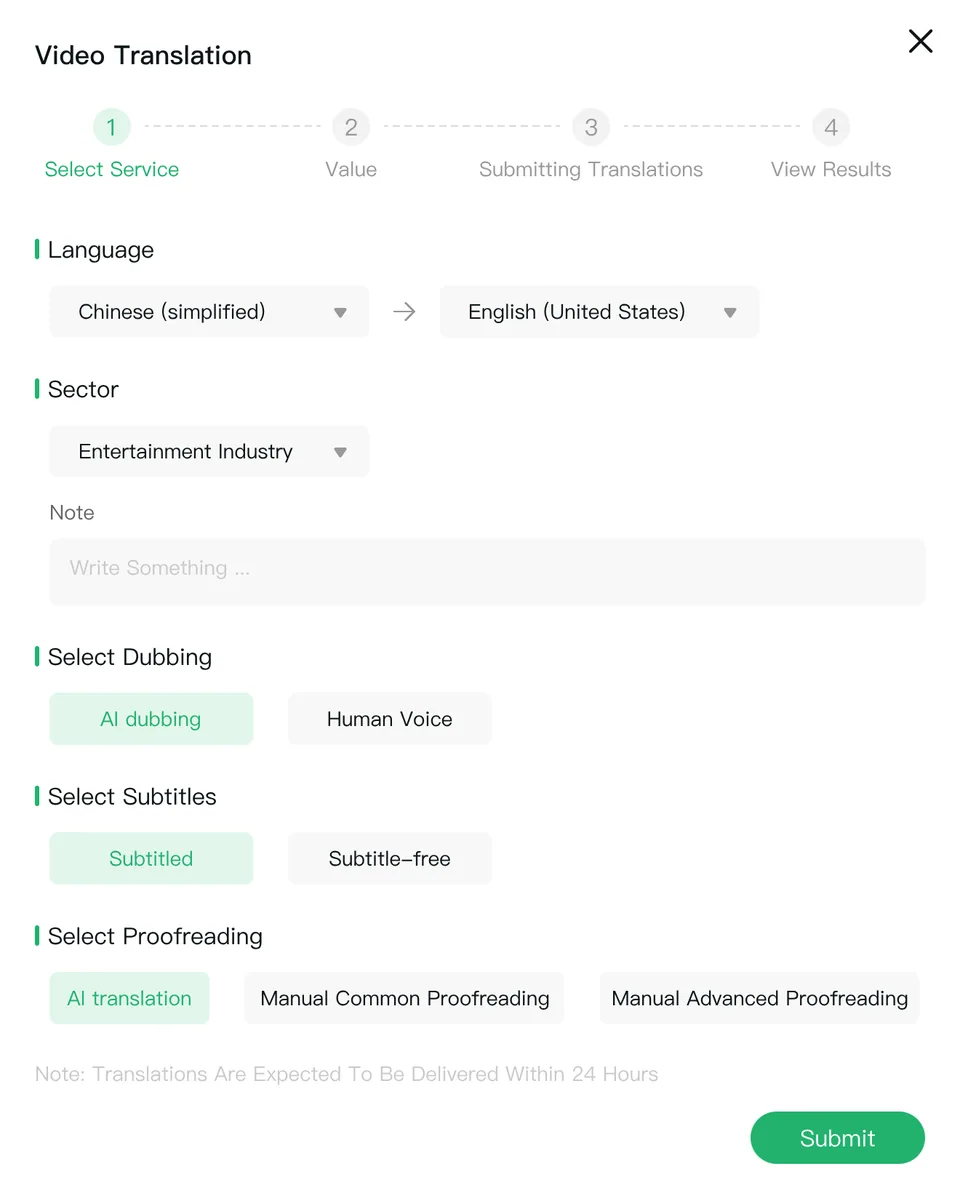
- After completing the selection, click Submit. The system displays the estimate details after calculation.
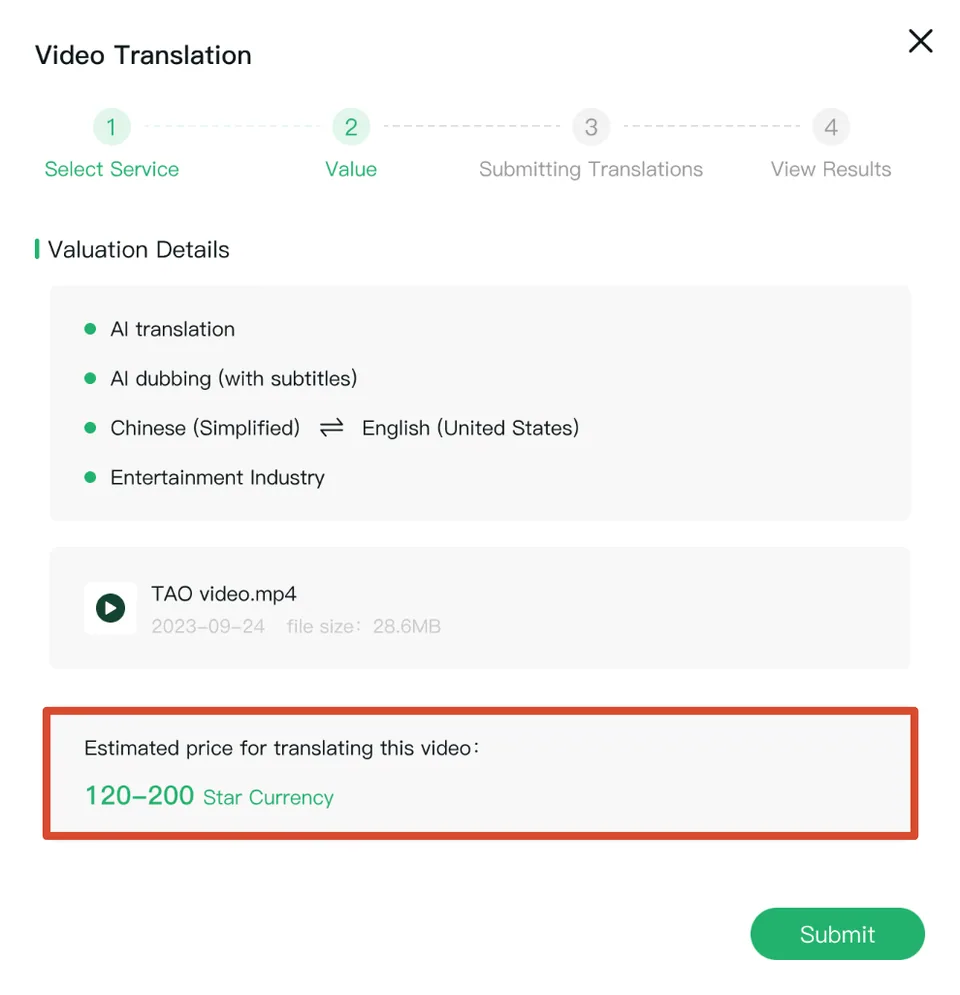
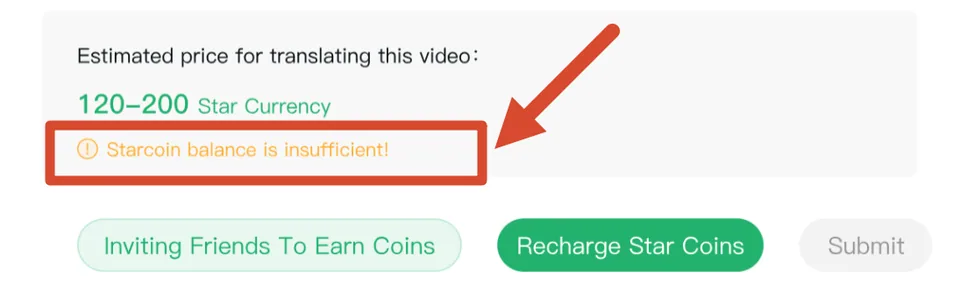
- Click Submit. If the balance is insufficient, Recharge Star Coins before proceeding.
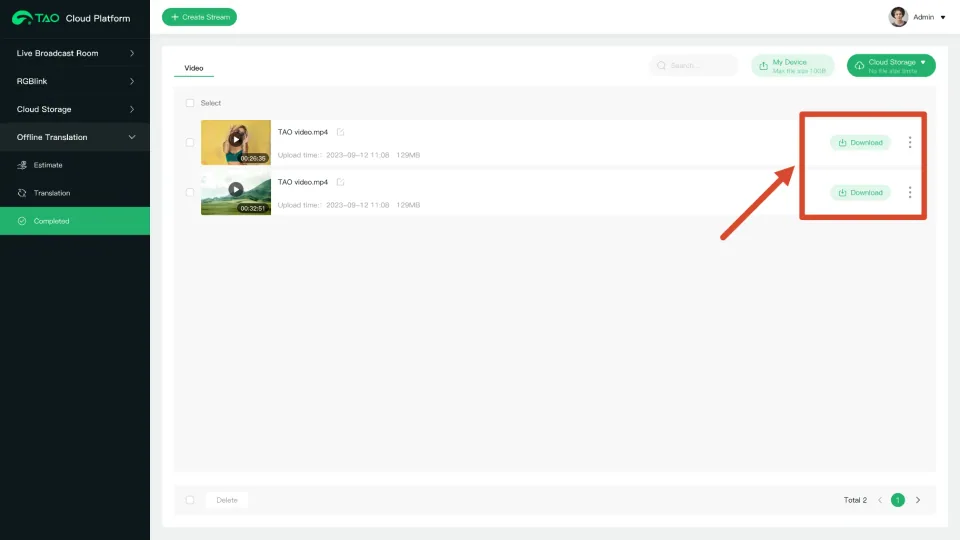
- If the balance is sufficient, the paid translation task starts automatically. The completed translation page is shown below.
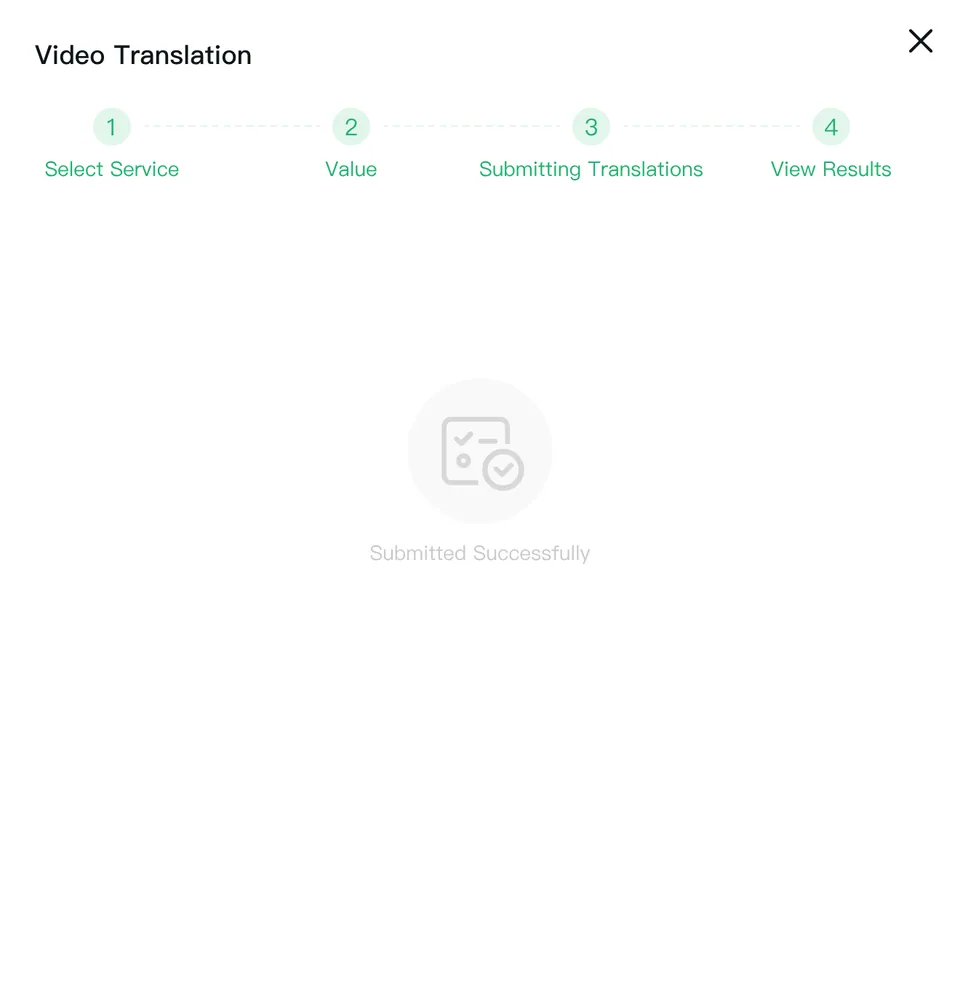
- Return to the previous page to download the translated video files.