
General / TAO Cloud / TAO Cloud Live
TAO Cloud Live Broadcast Room
Go to Live Broadcast Room > Home to enter the live room creation page.
Create dedicated live rooms as needed.
- Cloud Live Room Authorization Allows RGBlink devices (mini-mx, mini-edge, TAO 1mini, etc.) or streaming software (OBS, vMix, etc.) to stream to a cloud live room.
- Connect OBS, Zoom, etc. Distributes streams through TAO Cloud and enables multi-platform streaming to third-party platforms, including TikTok, Bilibili, YouTube, and more.
Cloud Live Room Authorization
Click Cloud Live Room Authorization > Enter to access the following page.
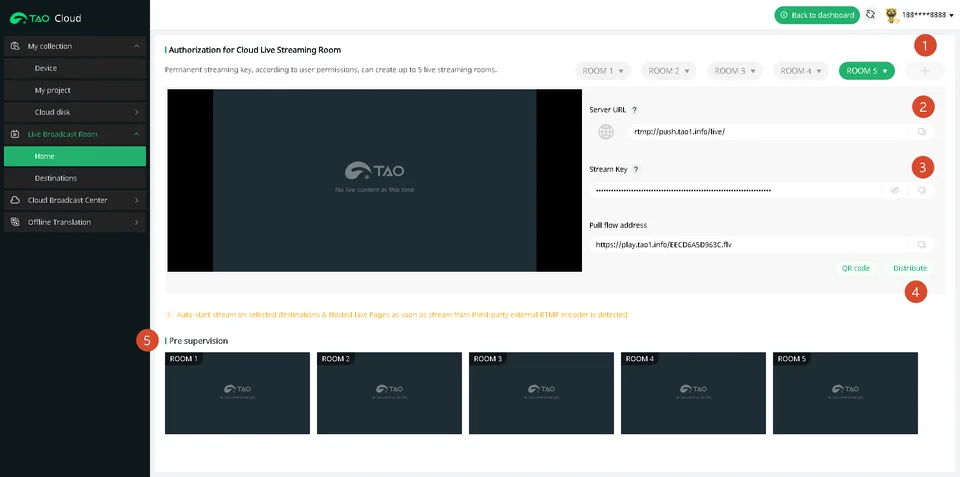
1. Create Live Room
- Click the + icon to create a live room. Up to five live rooms can be created.
- Click Edit Name to rename a live room.
- Click delete to remove an unwanted live room.
2. Server URL
Click the copy icon on the right to copy the Server URL address.
3. Stream Key
Click the copy icon on the right to copy the Stream Key.
4. Pull Stream Address
Click QR code to scan and view or download the stream. Click Distribute to send the address to the selected device.
5. Pre supervision
Preview the live room output.
Connect OBS, Zoom, etc.
Click Connect OBS, Zoom, etc. to enter the following page.
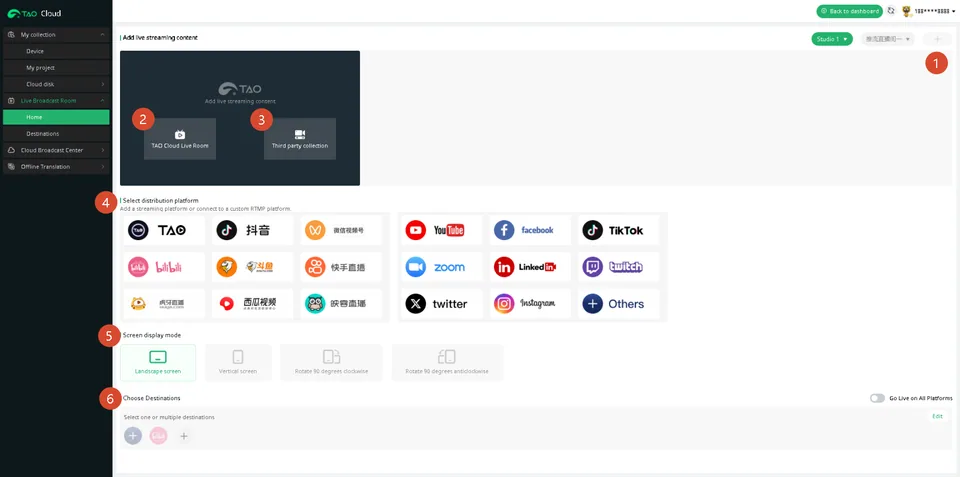
1. Add Live Room
Click the + icon to add a live room. Up to two live rooms can be added.
2. TAO Cloud Live Room
Click TAO Cloud Live Room to select an authorized live room on TAO Cloud (see section Cloud Live Room Authorization).
3. Third party Collection
Click Third party Collection, enter the pull stream address, and click Confirm to capture the live stream from a third-party platform.
4. Select Distribution Platform
Select the platform for distribution. Enter the platform name, server address, and stream key, then click Connect to save.
5. Screen Display Mode
Set the display orientation to landscape, portrait, 90° clockwise rotation, or 90° counterclockwise rotation.
6. Choose Destinations
Click the + icon to add a distribution platform.
If no platform has been added, the system automatically opens the Destination page. Select a platform, enter the platform name, server address, and stream key, then click Connect to save.
After saving, added platforms can be managed here. Click Edit on the right to manage distribution platforms.
Enable Go Live on All Platforms to start multi-platform streaming.